If you are using Microsoft Azure Sentinel as your SIEM solution, may you face this question, How to keep logs as cold logs after 90 days? Because as you know the log retention on Azure Log Analytic Workspace (A Log Analytics workspace is a unique environment for log data from Azure Monitor and other Azure services such as Microsoft Sentinel and Microsoft Defender for Cloud.) is 90 days then you need a place to keep the logs for more than this time (Based on your internal log policy). So the solution is select logs that are 89 days old and send them to an Azure Storage Account (Azure storage account contains all of your Azure Storage data objects, including blobs, file shares, queues, tables, and disks.) to keep them for long period.
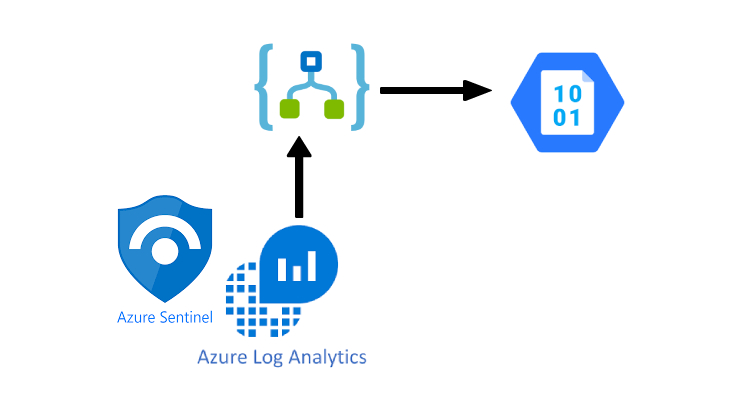
The following introduction shows you how to create an Azure Logic Apps (Azure Logic Apps is a leading integration platform as a service (iPaaS) built on a containerized runtime. ) to select logs and send them to the related Azure storage account’s directories.
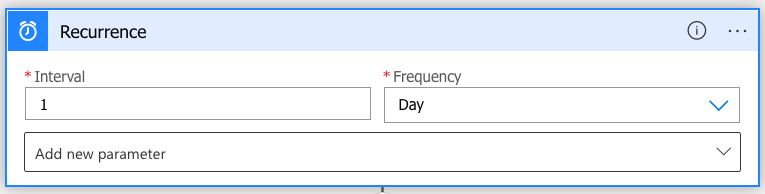
Recurrence:
Once a day is fine for running this so
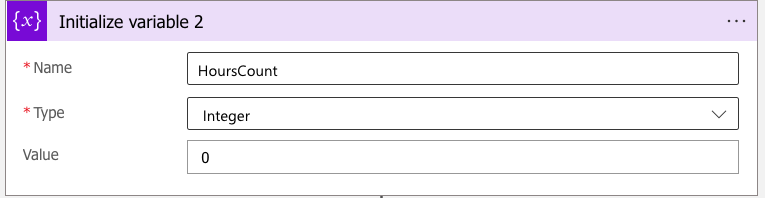
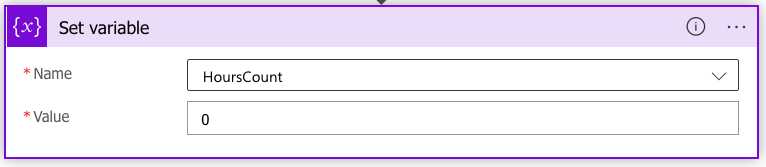
HoursCount:
Since we want to store logs per hour we need a counter to catch this, so
StartDate:
To find the date that we want to backup logs, so
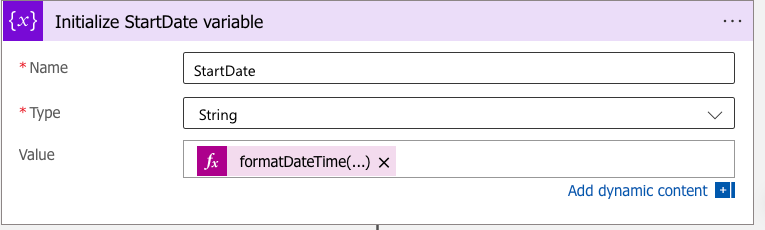
The function is:
formatDateTime(addDays(utcNow(), -89),'yyyy-MM-dd')EndDate:
Also, we need the End date, so
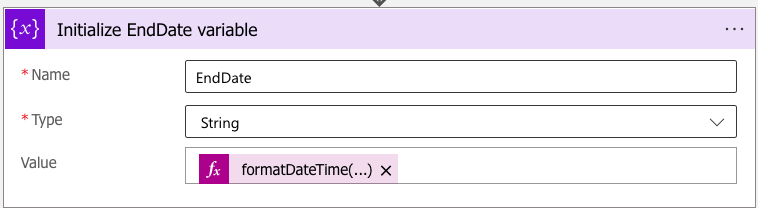 The function is:
formatDateTime(addDays(utcNow(), -88),'yyyy-MM-dd')ExcludedDataTypes:
To exclude some data types that we don’t want to keep, so
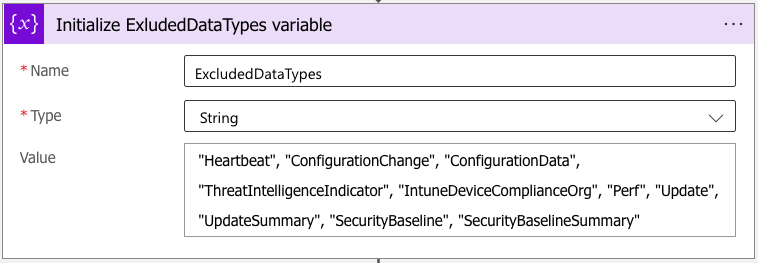
"Heartbeat", "ConfigurationChange", "ConfigurationData", "ThreatIntelligenceIndicator", "IntuneDeviceComplianceOrg", "Perf", "Update", "UpdateSummary", "SecurityBaseline", "SecurityBaselineSummary"Query data type list:
Since we want to keep each DataType in the same directory (the storage account’s directory name will be the same as DataType).
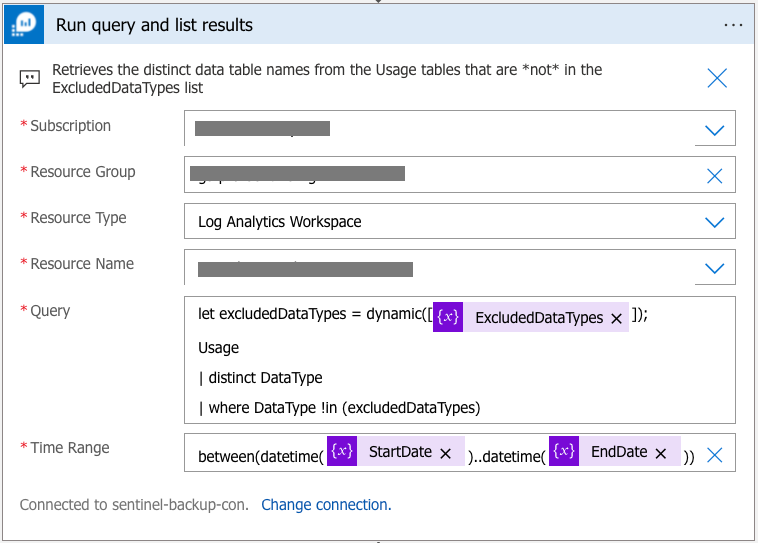
Query:
let excludedDataTypes = dynamic([@{variables('ExcludedDataTypes')}]);
Usage
| distinct DataType
| where DataType !in (excludedDataTypes)
Time range:
between(datetime(@{variables('StartDate')})..datetime(@{variables('EndDate')}))Table Name:

Parse the JSON result:
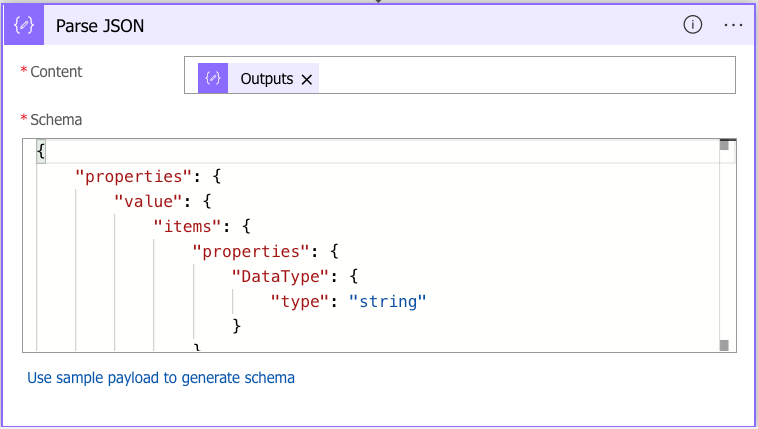
Schema:
{
    "properties": {
        "value": {
            "items": {
                "properties": {
                    "DataType": {
                        "type": "string"
                    }
                },
                "required": [
                    "DataType"
                ],
                "type": "object"
            },
            "type": "array"
        }
    },
    "type": "object"
}
Query per data type:
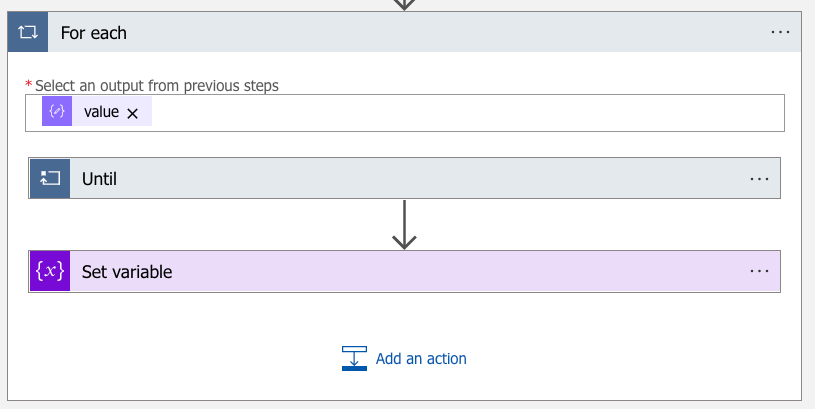
Inside the Until:
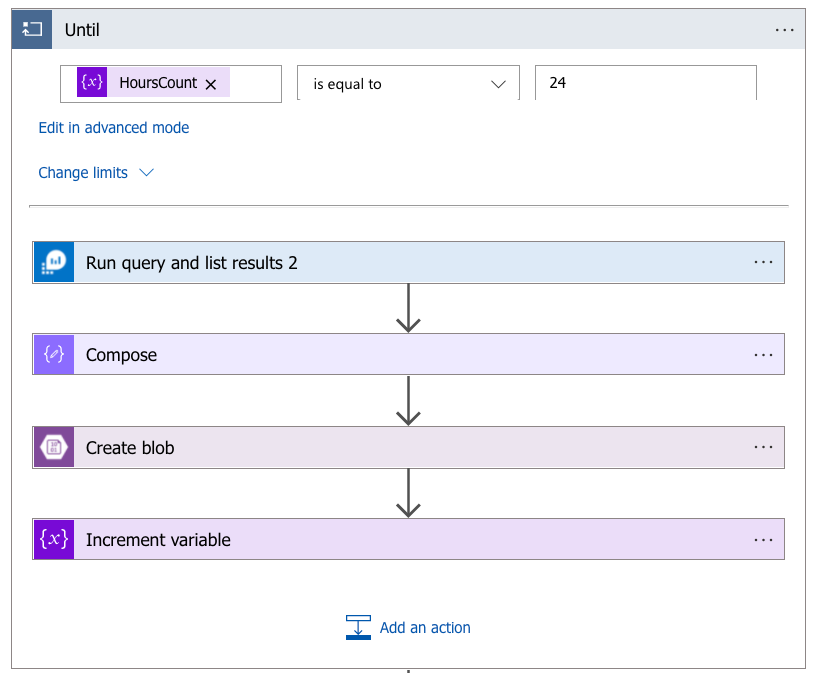
Data Type query:
This query helps us to catch the logs of a specific data type for an hour.
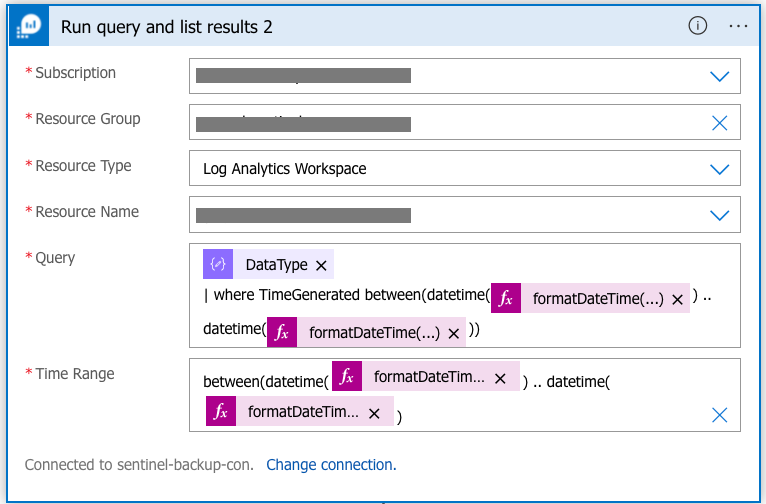
The code:
@{items('For_each')?['DataType']}
| where TimeGenerated between(datetime(@{formatDateTime(addHours(variables('StartDate'),variables('HoursCount')))}) .. datetime(@{formatDateTime(addHours(variables('StartDate'),add(int(variables('HoursCount')),1)))}))
Time Range:
between(datetime(@{formatDateTime(addHours(variables('StartDate'),variables('HoursCount')))}) .. datetime(@{formatDateTime(addHours(variables('StartDate'),add(int(variables('HoursCount')),1))})3 steps:
These help to create a blob to keep logs that are the result of the previous step query. then go for the next hour’s logs.
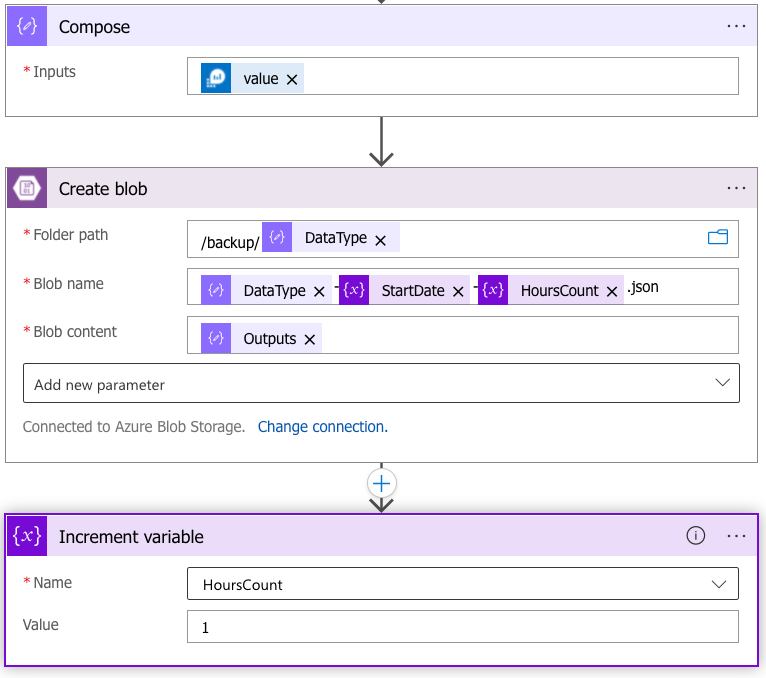
And the final step:
The step is out of the “until loop”
Done!
For more info please check this link